まぁWindows Azure のPoint-To-Site VPNが来た時点でなんとなくは。
ということで長らくベータというかプレビューだったWindows Azure Connectは2013年6月30日をもって終了となります。Point-To-Site VPNを使ってねはーと
便利だったんだけどねぇ。
まぁWindows Azure のPoint-To-Site VPNが来た時点でなんとなくは。
ということで長らくベータというかプレビューだったWindows Azure Connectは2013年6月30日をもって終了となります。Point-To-Site VPNを使ってねはーと
便利だったんだけどねぇ。
PST時間で4月にねじ込んできました。今回はWindows Azure SDK 2.0 for .NET のリリースです。
インストールはWeb Platform InstallerからAzureで検索して入れるのが便利です。
If you want to connect to the VPN manually, do as following:
1. Download client VPN package from management portal site
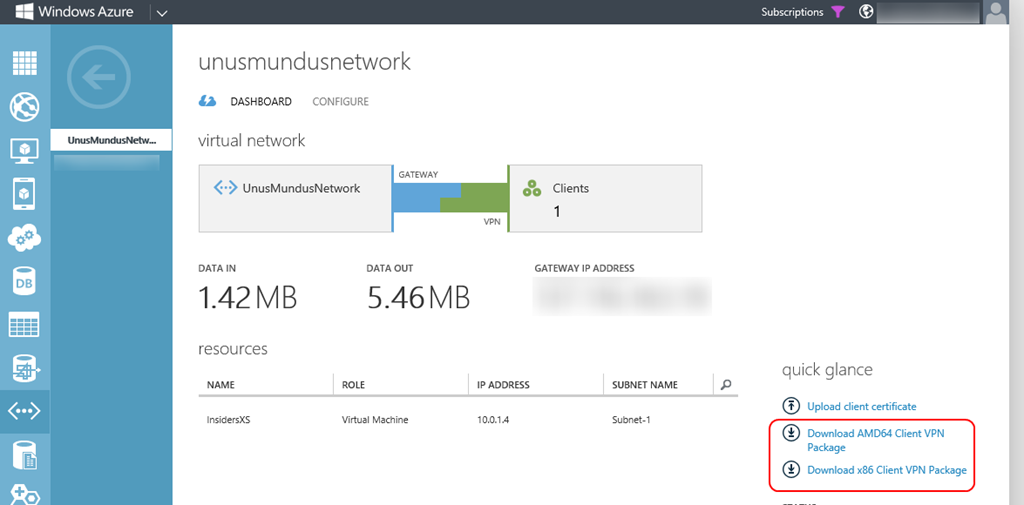
2. Unpack to VPN package file.
You unpack a VPN package file as follows:
vpnpackage.exe /C /T:c:\temp\vpnpackage
3. Install *.cer file for VPN gateway in unpack folder
You should install as an administrator a *.cer file as follows:
certutil -addstore root vpngateway.cer
4. Set up a new VPN connection
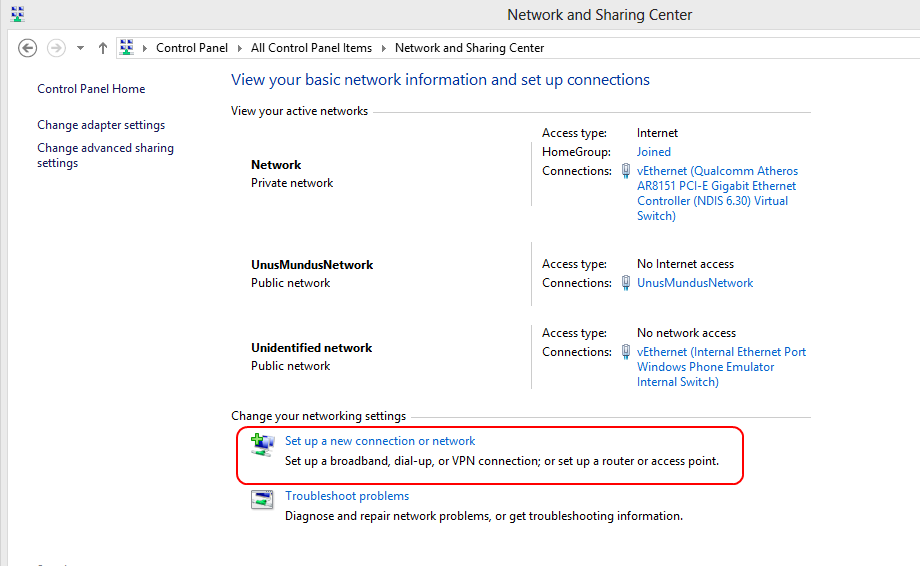
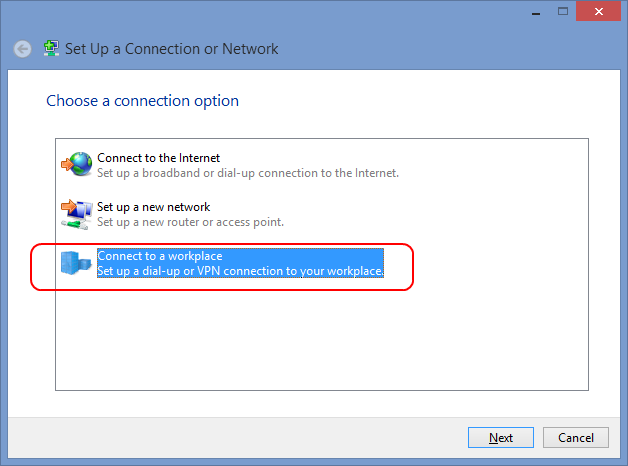
Select a [Connect to a workplace].
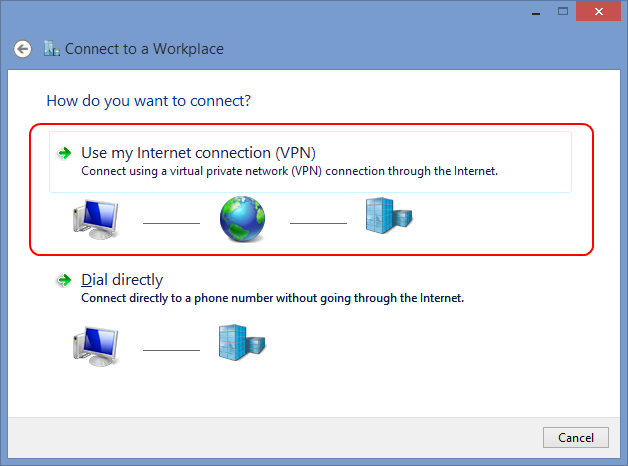
Select a [Use my Internet connection (VPN)].
Enter a Azure VPN gateway FQDN in [Internet address].
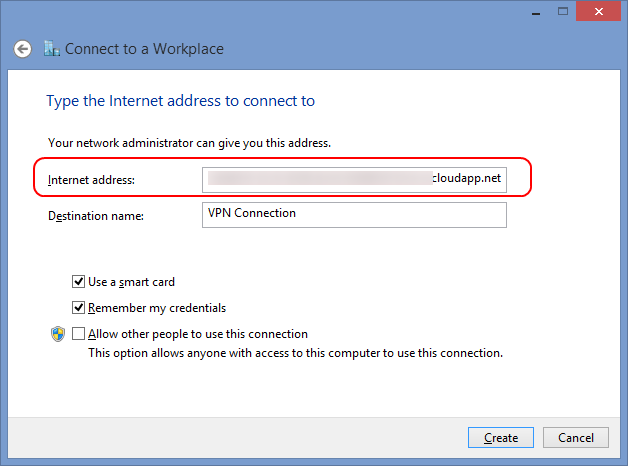
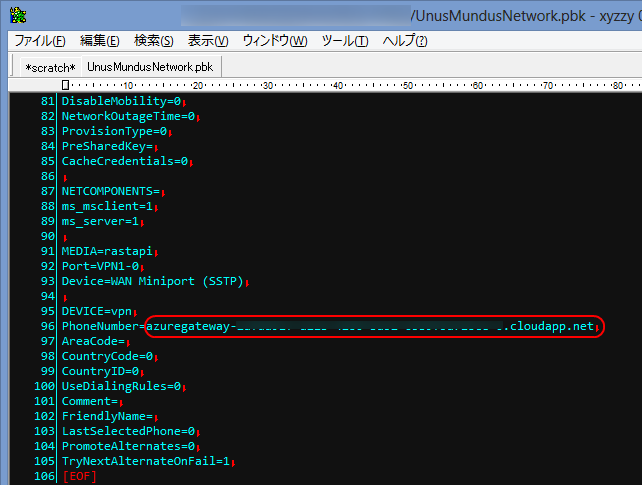
* Your’s VPN gateway FQDN has been described in the pbk file.
5. Change the property in VPN connection
in Security Tab
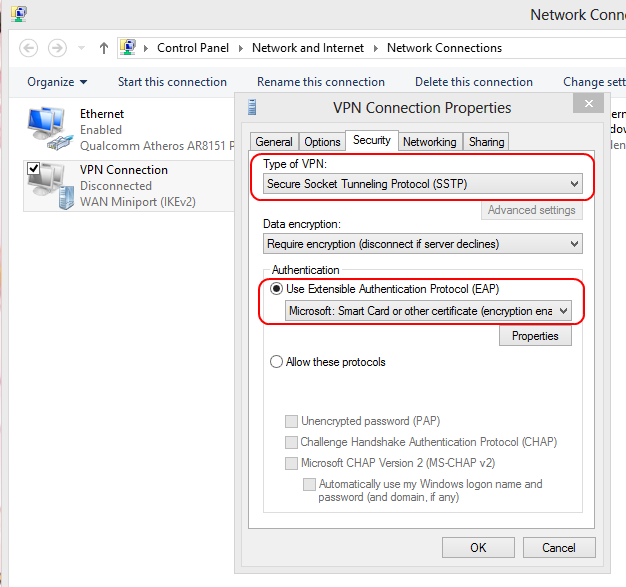
in EAP property
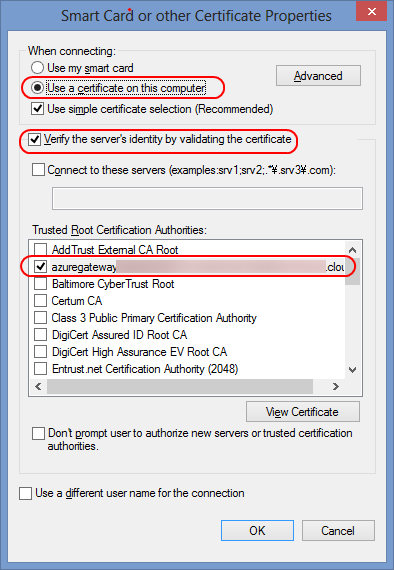
[When connection:] … [Use a certificate on this computer]
You should turn off [Use default gateway on remote network] option in Networking tab.
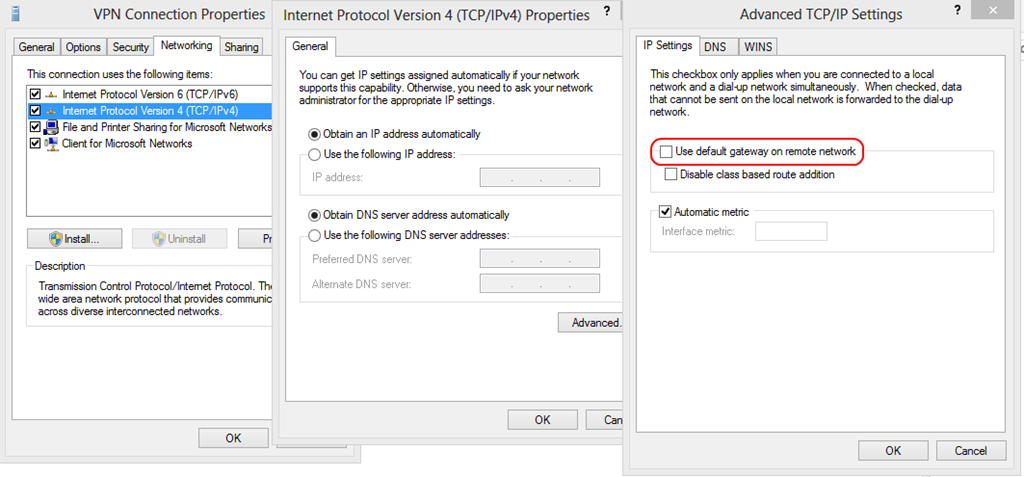
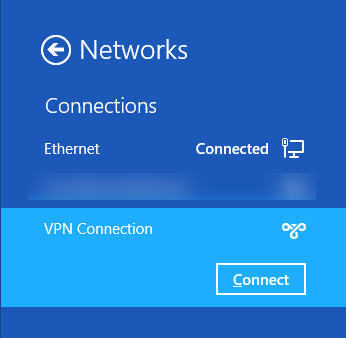
6. Connect to VPN
You should choose a client certificate for Azure VPN gateway at start connect.
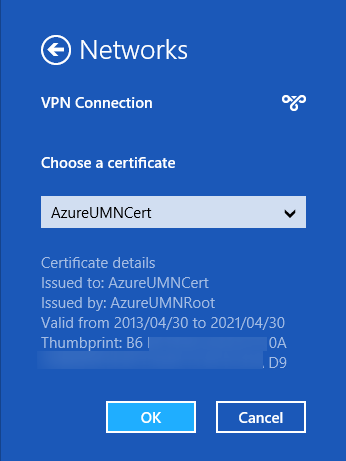
If error not occurred, congratulation! You can connect to Azure Virtual Network over VPN!
こないだ拡張されたWindows Azure 仮想ネットワークのPoint-To-Site VPNですが、標準で提供されている接続ツールはWin7以降のx86/x64しかサポートされていません。
でもまぁ接続ツールなくても何とかなるだろう、ということでいろいろ試してみました。
4月27日にGlobal Windows Azure BootCampという、ワールドワイドで同じ日にAzureのBootCampやろうぜイベントがありました。もちろん日本でも開催しましたYO。
今日はAzure Global Bootcamp当日だというのに、われらがScottGuはやってくれました。Updateです。
今日のUpdateはこちら。
諸君らが愛してくれたVM Roleは死んだ、何故だ! Windows Azure Infrastructure Services(仮想マシン・仮想ネットワーク)がGAしたからだ!
ということで仮想マシン正式リリースということで、長年Windows Geekたちを楽しませてくれたVM Roleは2013年5月15日をもって終了となりました。
5月15日をもって新規VM Roleの展開ができなくなり、5月31日に実行中のVM Roleは削除されます。なので早めに仮想マシンのほうに移行しておきましょう。
VM Roleから仮想マシンへの移行はVHDを流用すればさほど難しくないはずです。
というわけでVM Roleさんありがとうございました。
Windows Azure WebSitesがアップデートされてDropboxからの発行が行えるようになったわけですが、注意点が1つだけ。
ソース管理プロバイダの選択ウィザード(Dropbox連携のウィザード)で既存フォルダを選んだ際、ウィザード終了後すぐにそのフォルダの内容がWebSitesに発行されます。
※新規だと最初の同期トリガーは手動(まぁ新規だと中身空だし)。他のソース管理プロバイダはPushしたタイミングがトリガーになるので連携した段階では発行されません。
ということで使いまわしたりする際は十分に注意してください。
あと、この仕様はちょっと戸惑ったので、それならそうとちゃんと言ってよーということで、ウィザードのページに「
既存のDropboxフォルダーを選択した場合、ウィザード終了後直ちに既存のDropboxフォルダーの内容が発行されます。」のようなヘルプ載せてください、と中の人にフィードバックしておきました。

帝国兵な人に感謝。
おまけ。
以下だらだらとやりとりの自分の意見を抜粋。
I had a noticed when tried that feature. This feature will be published to WebSite immediately from existing dropbox folder when choose existing dropbox folder in “Set up publishing” wizard. I was a little baffled by this behavior. Because other source control provider does not publish immediately when finish a “set up publishing” wizard. However, I think I may be in this behavior. However I think need message of help for this behavior in wizard. I think needs to do clarified about help message. Example, This folder will be created under the folder named /Apps/Azure in your Dropbox. When you choose an existing Dropbox folder, Application is published immediately from an existing Dropbox folder when this wizard finished.
またまたUpdateです。今日は”やったねHDInsight Preview記念日”。

今日も盛りだくさんなので、ちょっとづつ紹介。基本は上記のリンクを見てください。
今回のUpdateで一番大きかったのはWindows Azure Active Directoryの管理が統合されたこと+Windows Azure Active Directory側で多要素認証がサポートされたことじゃないでしょうか。
多要素認証って何?という細かい話は置いといて、ざっくりいうとID/Pass認証に追加して電話またはSMSによる追加認証ができます。(今だと多要素っていうか二要素ですね ※イントラのADと組み合わせてOTPとかさらに追加できるんでしょうかね(できそうだけど))
Office 365+Windows Azure Active Directoryを使った例はすでにMSの安納さんがBlogに書かれているので是非そちらを参照ください。
※ついでにWindows Azure Active Directoryって何?という方はこちらもどうぞ
今回はWindows Azureの管理ポータルをWindows Azure Active Directoryのアカウントで認証できるようにして、多要素認証までやってみたいと思います。連携も多要素認証も今回のアップデートからですね。
※Windows Azure Active DirectoryがWindows Azureブランドだからよくわからない感じになっていますがw
 ブチザッキ
ブチザッキ 